Best Dvd Burner For Mac 2016
- Best Dvd Burner For Mac 2016 Office
- What Is The Best Dvd Burner For Free
- Best Dvd Creator For Mac 2016
PCMag reviews products, but we may earn affiliate commissions from buying links on this page. Why are you still burning stuff onto CDs? But you're here, so you must really want to do this thing, so let's get into it. In today's mobile, always-connected world, there are plenty of quality free online cloud storage options such as or, not to mention the media storage options from,,.
Formatting hard drive for mac. But, I suppose, if you really want to make sure your data is accessible and/or not being snooped on, you need a hard local backup. That's actually pretty smart. There are plenty of good, and even some beefy thumb drives. But for some reason, you really, really still want to use a CD. I'm not here to judge, only to assist.
Best Dvd Burner For Mac 2016 Office
So, first thing is make sure that your computer has a burn-ready drive or you have access to an external CD burner. And then get yerself some writable CDs.
Best Mac DVD Burning Software Reviews 2018 Edition. DVD Burning is still alive and well for OSX users. Even though new iMac don't come with a DVD drive, you can still create and burn DVD's using the right software. External CD Drive,NURBENN USB 3.0 Portable CD/DVD +/-RW Drive Slim DVD/CD Rom Rewriter Burner Super High Speed Data Transfer for Laptop Desktop Linux OS Apple Mac Macbook Pro and PC Windows XP/Vista Type: CD-ROM Drive.
On a Mac If you're burning data, just slip that writeable bad boy in. Drag and drop the files into the disc icon on your desktop. Choose File > Burn [disc] and follow directions from there. Wirecutter calls it the best DVD drive on the market. Its burning and ripping speeds are in line with those of other DVD drives, plus it's inexpensive, thin, and light. It comes in black, gold, silver, and white and is priced at between $25 and $30, depending on your color option.
It doesn't require any additional software to run on Mac. Wirecutter calls it the best DVD drive on the market. Its burning and ripping speeds are in line with those of.
They're super cheap these days. You can burn an audio CD or stuff it with data. There are plenty of software packages out there, but let's start with what's probably already on your computer.
What Is The Best Dvd Burner For Free
Windows First, let's talk to. Just slip the disc into the CD tray, which will prompt an AutoPlay dialog box. If you want to fill the disc with files (as opposed to making an audio CD, which we'll get to later), click 'Burn files to disc using Windows Explorer.' In the subsequent 'Burn a Disc' dialog box, type a name for the disc in the 'Disc title' field. Click which format you want for the disc: either the more-versatile and re-workable Live File System (AKA 'Like a USB Drive') or the one-time Master system (AKA 'With a CD/DVD player').
You can find more information on which format to choose. Then click 'Next.'
All you have to do then is double-click the file on your desktop and drag and drop the files you wish to burn into the empty CD. If you formatted the disc using the Live File System ('Like a USB Drive'), then all you have to do is close out by clicking on Close session on the toolbar.
If you chose the one-time Mastered format (AKA 'With a CD/DVD player'), you'll have to click the 'Burn to disc' button in the toolbar and follow the steps in the Wizard from there. If you are creating an audio CD, you would have chosen 'Burn an audio CD' in the original AutoPlay prompt. This will open the Windows Media Player, which has a simple drag-and-drop window to order the tracks as you would like them. You can find more specifics about this process. Then when you're happy with it, just click the 'Start' button. Conversely, you can also use iTunes, which we'll explore below.
Best Dvd Creator For Mac 2016
On a Mac If you're burning data, just slip that writeable bad boy in. Drag and drop the files into the disc icon on your desktop. Free screen recording software cnet.
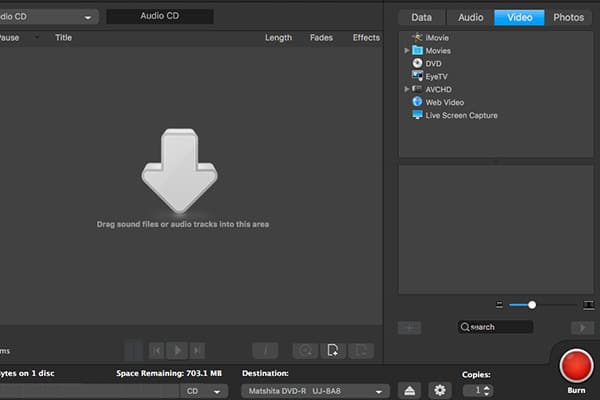
Choose File > Burn [disc] and follow directions from there. If you want to burn an audio CD, you'll have to do that (you can also do that on the Windows version of iTunes). First, click on the iTunes > Preferences > Burning [tab] and select 'Audio CD.' Next, arrange all the songs you'd like to burn into a playlist (you can only burn from a playlist).
Highlight the playlist and then click the Burn Disk icon in the top-right corner. Soon you'll be swooning to Boyz II Men and Jesus Jones tracks on your super sweet new CD. Have fun with that.