Mac Book How To Set Preferences For Reminders
The Reminders app that comes with every iPhone and iPad is simple to use yet still offers more advanced features, such as recurring tasks. These are great for times when you want to set up certain reminders that you may have to remember to do on a daily, weekly, or even custom schedule. Any free video converter for mac.
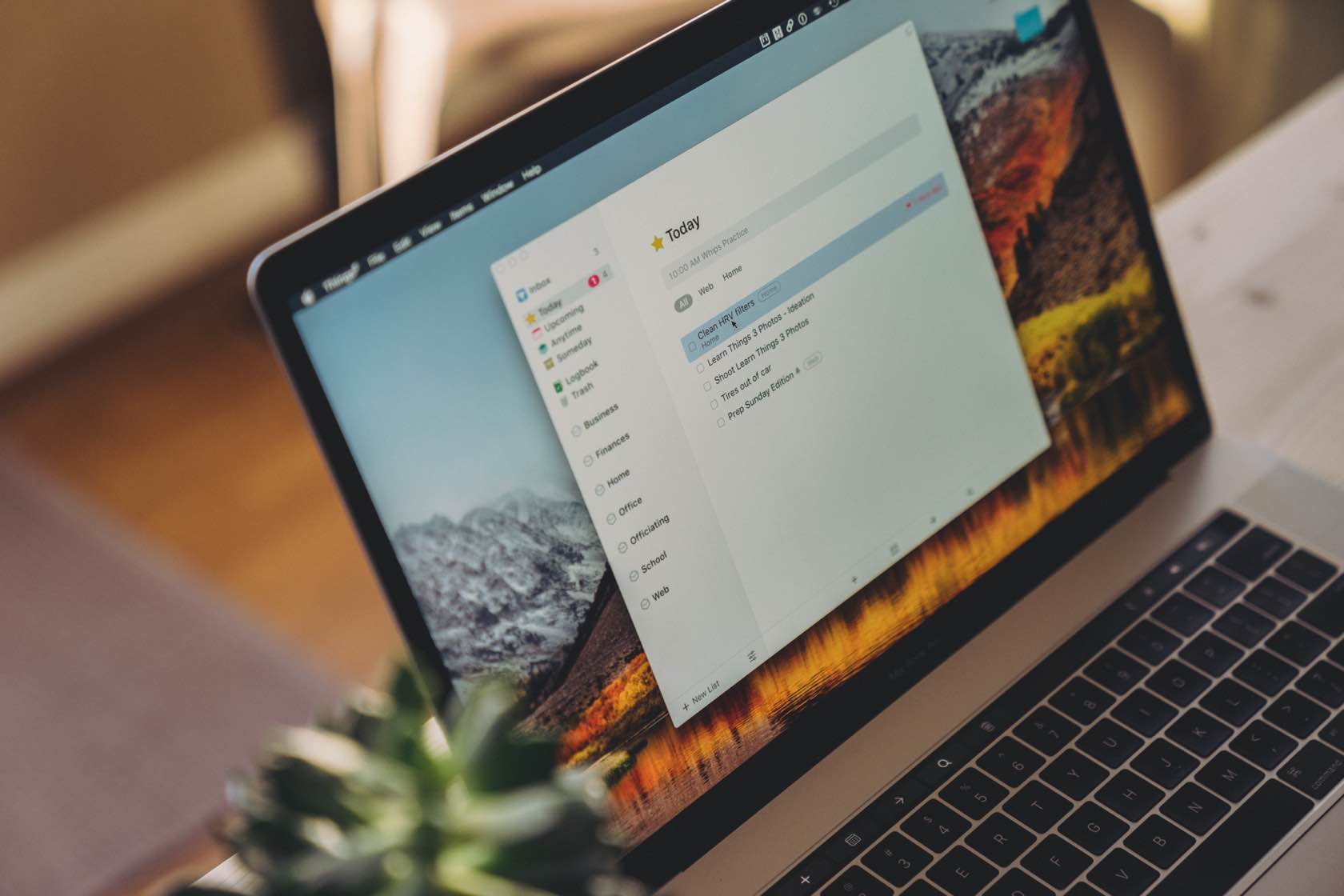
6) Set the timing for the alert to open the file. When the time that you set for your alert comes, the file you choose will pop open on your screen automatically. If you need multiple files for your meeting, open the event and click the plus sign next to your first alert to add another. Then, just repeat the steps above to add more custom alerts containing the files. On your Mac, choose Apple menu > System Preferences > iCloud. Check your Apple ID and make sure that you select what you want to update (Contacts, Calendars, or Reminders). This way you can arrange for presents or greeting cards in advance! Your iPhone will then remind you with a notification. You can set it to either the day of the event, one, two or seven days before the due date. Here’s how to do it. Go to your “Settings” and select “Calendar”, then “Default Alert Times”. In this article you will learn how to use the reminders app on a MacBook: create lists, add schedules, links, contacts, maps etc. To create reminders – follow this instructions.
Here’s how: How set up recurring reminders on iPhone and iPad • Launch the Reminders app on your iPhone or iPad. • Enter a title for your reminder as you normally would. • Tap the info button to the right of your new reminder. • Turn On the option for Remind me on a day. • Choose when you want to be reminded and then tap Repeat.
• From here you can choose many options, including Custom. • Set the desired frequency (E.g. Daily), then choose Every. • You will now be able to set how often you want to be reminded (E.g. Every 2 days etc) That’s all you need to do to start creating recurring Reminders on iPhone and iPad. You may not get as many options as some other third party apps offer, but for most people, most of the time, the Reminders app should get the job done.
If you need something more powerful for recurring reminders, we’d recommend checking out.
Mac Book How To Set Preferences For Reminders On Iphone
Macbook How To Set Default Browser
What are system preference files on Mac OS X? Your Mac's system preference files are files that store the rules (or parameters) that tell your apps how they should work. And you can find these preference files within each applications' contents. Free avast license key for mac.
It consists a lot of new features it includes all-new disk management window and its purpose is to display any of the Mac disk mounted to your system and giving you the access to all of its features. MacDrive Standard 10.5 Serial Key is seamless, simple and really easy to be used. Daisydisk 2 crack keygen mac 10.5. Its up to you and you can open and edit your Mac files from that new window and you can also access those files from the windows explorer. It also provides you a faster access and protection for your Mac disks and files. The speed at which it read and write is really fast and unparalleled security.
A) In Finder, navigate to Go > Utilities and launch KeychainAccess.app b) Verify that your CAC certificates are recognized and displayed in Keychain Access Note: CACs are currently made of different kinds of card stock. 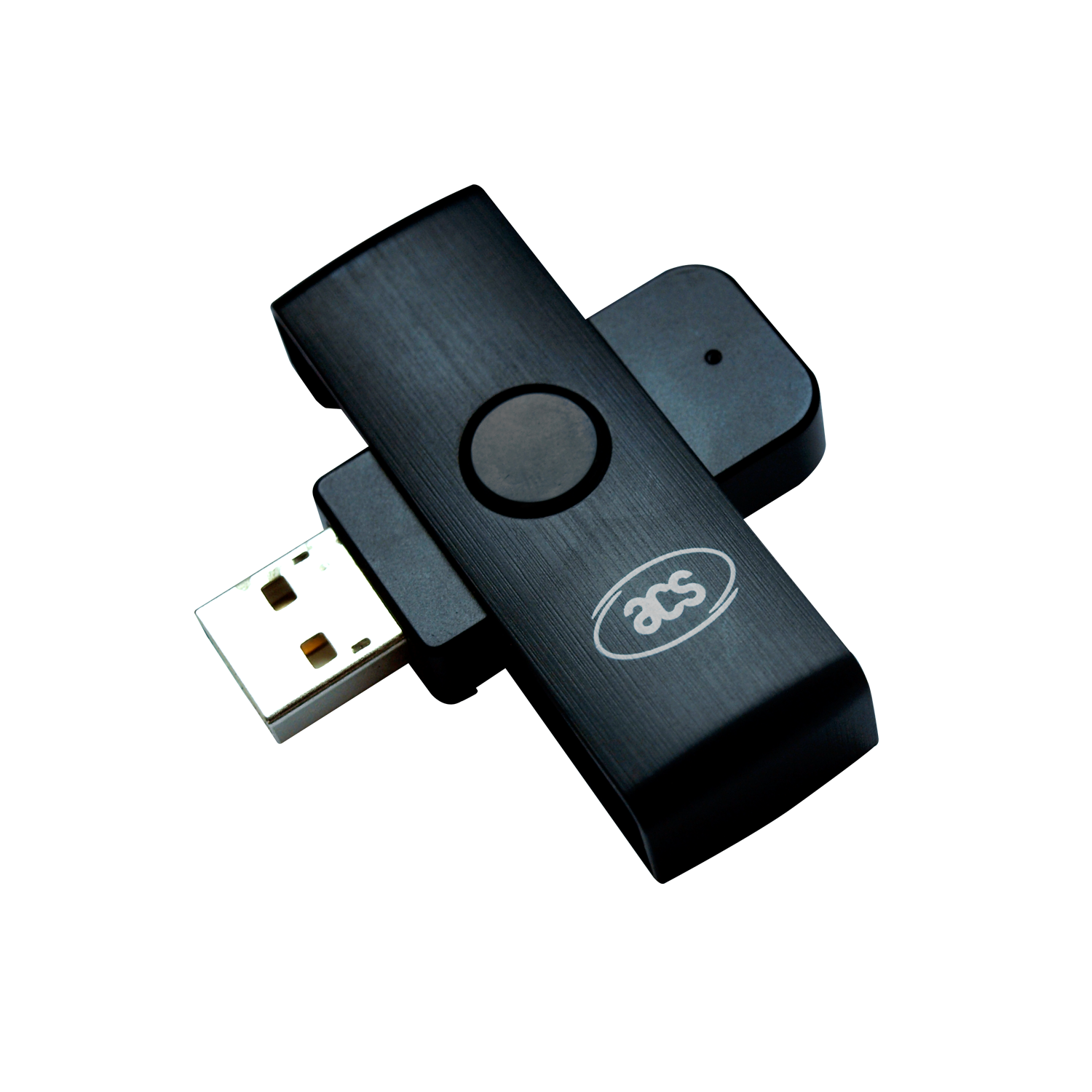 • Address the cross-certificate chaining Issue These walk through adjusting the trust settings on the Interoperability Root CA (IRCA) > DoD Root CA 2 and the US DoD CCEB IRCA 1 > DoD Root CA 2 certificates to prevent cross-certificate chaining issues. • Configure Chrome and Safari, if necessary Safari and Google Chrome rely on Keychain Access properly recognizing your CAC certificates. To determine what card stock you have, look at the back of your CAC above the magnetic strip. This can make it appear that your certificates are issued by roots other than the DoD Root CA 2 and can prevent access to DoD websites.
And what about broken preferences? Well, with time, these preference files can be corrupted (or broken) due to things like: an app crash, a sudden blackout, or even hard drive corruption. Now, to fix them, we must delete them — Clean up these Mac preference files makes the app create a new, default preference file. This can help your app(s) operate correctly again. So, today, we'll go over two ways on how to remove system preference files: the easy way (with a utility), and the hard way (manually). How to Fix System Preferences on Mac OS X The Easy Way Deleting preference files (well, refreshing them) on your Mac is incredibly easy with a Mac utility like. It scans your Mac for preference files that are broken and removes them with just a click of a button. CleanMyMac X contains a few cleaning modules responsible for cleaning your Mac in the most efficient manner.